How to check website traffic on Squarespace (2026 analytics guide)
Squarespace has built-in analytics on every plan, found under the Home menu then Analytics. It shows traffic, sources, popular content, geography, and devices, with sales and funnel panels reserved for Commerce plans. The built-in tools are fine for a quick glance but limited: the historical window is short, some panels are gated behind higher plans, and nothing summarizes the numbers in plain language. To track traffic more accurately or get a plain-English summary, add a lightweight privacy-friendly tool through Code Injection, which needs a Core, Plus or Advanced plan.
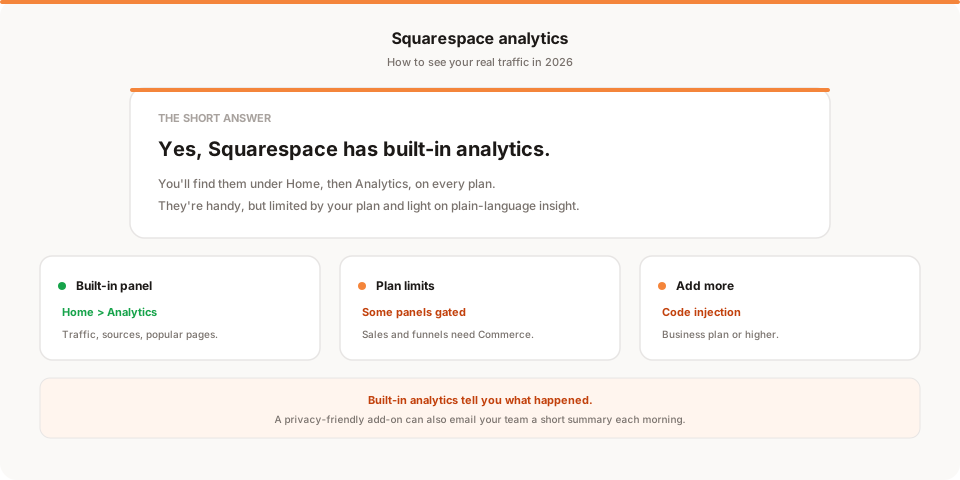
Short answer: yes, Squarespace has built-in analytics, and you'll find them under the Home menu by clicking Analytics. They're genuinely useful for a quick look at your traffic, sources, and popular pages. But they're also limited by your plan and by design, so this guide walks through where everything lives, what it actually tells you, and how to get more accurate or more digestible numbers when you need them.
If you run a Squarespace site, you've probably wondered whether you're getting the full picture of your traffic, or just a friendly summary. The honest answer is a bit of both. Squarespace gives you a solid built-in analytics panel that most owners never fully explore, plus some real limits that are worth understanding before you make decisions based on the numbers.
Let's start with where everything is, then get into what it means.
Does Squarespace have analytics?
Yes. Every Squarespace plan includes a built-in Analytics panel, and you don't need to install anything to use it.
You reach it from the Home menu, where you'll see an Analytics option. Click it and you land on a set of panels that cover the questions most site owners actually have: how many people visited, where they came from, and what they looked at. On Commerce plans you also get sales and checkout-funnel analytics on top of the traffic panels.
The catch, and it's a fair one, is that the depth varies by plan. The traffic basics are available broadly, but some of the richer panels (especially the commerce and marketing ones) are reserved for higher-tier plans. So "does Squarespace have analytics" is a clear yes, but "does my plan show me everything" depends on which plan you're on.
How to check your website traffic on Squarespace
Here's the quickest path to the numbers most people are looking for.
- Log in to your Squarespace site and open the Home menu.
- Click Analytics.
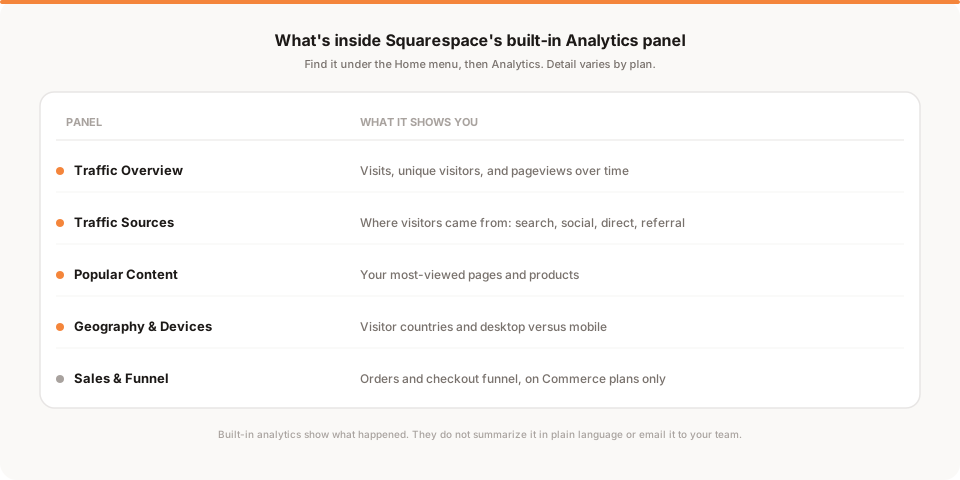
- Open Traffic Overview first. This is your headline view: visits, unique visitors, and pageviews across a date range you can change in the top corner. Adjust the range to compare this week to last week, or this month to last month.
- Open Traffic Sources to see how people found you, broken into search, social, direct, and referral. This is the panel that tells you whether your marketing is actually bringing people in.
- Open Popular Content to see your most-viewed pages and products, so you know what's pulling its weight and what isn't.
That five-minute loop answers the three questions that matter most for a small site: how many people came, how they found me, and what they looked at once they arrived.
What each Squarespace analytics panel shows
Beyond the three headline panels, Squarespace tucks away a few more that are worth knowing about.
- Geography and Devices. Which countries your visitors come from, and whether they're on desktop or mobile. Useful when you're deciding where to focus, or checking that your mobile experience isn't quietly losing people.
- Site Search. If your site has a search bar, this shows what visitors typed into it. That's a quiet goldmine, because it tells you what people expected to find and maybe didn't.
- Sales panels (Commerce plans). Sales Overview, Sales by Product, Abandoned Checkout, and the Purchase Funnel. These are genuinely good for a store, but they live behind Commerce plans, so not every site sees them.
- Activity Log. A near-real-time feed of what's happening on your site right now. Fun to watch, less useful for decisions.
None of this requires setup. It's all there the moment you publish. For a lot of small sites, that built-in panel is honestly enough to stay oriented.
The limits of Squarespace's built-in analytics
Here's where being straight with you matters. The built-in analytics are good for a glance, but they have real limits you should factor in before trusting them for big decisions.
The historical window is short. Squarespace keeps your analytics, but the comparison ranges and the way older data is presented can make it awkward to look far back or to study long-term trends. If you care about year-over-year patterns, it can feel cramped.
Some of it is gated behind higher plans. The most decision-useful panels, particularly the commerce and marketing ones, aren't available on the entry plans. So the analytics you can see are partly a function of what you pay, not just what your visitors did.
It tells you what happened, not what it means. This is the big one. The panels show you numbers and charts, but nobody reads them for you. If traffic dipped on Tuesday, you have to notice it, open the panel, and work out why. Most busy site owners simply don't log in often enough to catch these things while they still matter.
Counting is approximate. Like every analytics tool, Squarespace uses its own method to count visits and filter bots. That's fine, but it means your Squarespace numbers won't exactly match Google Analytics or any other tool. That's expected, not a bug, and I'll come back to why in the FAQ.
None of these are dealbreakers. They're just the reasons a lot of Squarespace owners eventually add a second, dedicated analytics tool alongside the built-in one.
Why your Squarespace numbers won't match Google Analytics
If you run Squarespace analytics and Google Analytics side by side, they'll disagree, sometimes by a lot. That's normal, and it's worth understanding so you don't waste an afternoon hunting for a bug that isn't there.
The two tools count differently. Squarespace measures visits and unique visitors with its own method and filters some known bots automatically. Google Analytics leans on cookies and its own session logic, and in the EU it often loses a chunk of data whenever a visitor rejects the cookie banner, because Analytics isn't allowed to run until they agree. Privacy-friendly tools count differently again, usually without cookies at all.
So you can easily see a 10 to 30 percent gap, or wider, between any two tools measuring the same site. None of them is lying. They're just answering a slightly different question with a slightly different method.
The practical takeaway is to pick one tool as your source of truth and watch the trend inside it, rather than obsessing over whether two dashboards agree on an exact number. The direction of change, up, down, flat, and why, matters far more than the second decimal place. Consistency beats false precision every time.
How to add more accurate, privacy-friendly analytics
If you want more control, a longer history, or numbers you trust more, you can add a dedicated analytics tool to Squarespace. Here's the honest version of how that works.
The mechanism is Code Injection, which is included on the Core, Plus and Advanced plans (and legacy Business and Commerce plans). The Basic plan doesn't include it, so if you're on Basic you're limited to the built-in analytics unless you upgrade.
If you do have Code Injection, adding a tool takes about two minutes:
- Copy the tracking snippet from your analytics tool of choice.
- In Squarespace, go to Settings, then Advanced, then Code Injection.
- Paste the snippet into the Header field.
- Save. The tool starts collecting on your next page load.
This is exactly how you'd add a privacy-friendly analytics tool like Plausible, Fathom, or Muro, and it's also how you'd add Google Analytics if you wanted to. The reason a lot of Squarespace owners reach for the privacy-friendly options is that they avoid cookies and, in most contexts, avoid the consent banner that Google Analytics generally needs in the EU. If you want the full comparison of that category, I went through the main options in the best privacy-friendly analytics tools for 2026. And if you're weighing whether to move off Google's tool entirely, the best Google Analytics alternatives covers that decision.
Tracking conversions and form submissions on Squarespace
This is where people get stuck, so it deserves its own note.
For stores, Squarespace tracks sales and the checkout funnel natively on Commerce plans, so your conversion picture is mostly handled. For everything else, forms, newsletter signups, contact requests, the reliable pattern is to redirect people to a dedicated thank-you page after they submit, and then count views of that thank-you page as conversions in whatever analytics tool you're using.
The reason this matters: if your Squarespace form only fires off an email without sending the visitor anywhere, there's no page load to measure, so client-side analytics can't easily see the conversion. Adding a simple thank-you page redirect fixes that in one step, and it also gives your visitor a clearer sense that their submission went through. If you use privacy-friendly analytics, that thank-you page view becomes your signup number. In Muro, for example, you mark the thank-you page as a goal and see leads by source and campaign, and because goals apply to data already collected, past submissions are counted too. For the full step-by-step, see how to track leads on Squarespace.
How often should you check your Squarespace analytics?
Less often than you'd fear, and more regularly than you probably do.
For most small sites, a weekly look is plenty. Open the Analytics panel once a week, compare the last seven days to the previous seven, and scan three things: did traffic move, did the mix of sources change, and did anything on the Popular Content list surprise you. That ten-minute habit catches almost everything that matters without turning analytics into a daily worry.
The trouble is that "once a week" is exactly the kind of habit that quietly slips. A launch week gets busy, then two weeks pass, then a month, and you miss the dip that started back on the Tuesday you didn't log in. This is the most common way small sites end up flying blind: not from a lack of data, but from nobody looking at it in time.
That gap is the whole reason summary-by-email tools exist. If the numbers come to you, you don't have to remember to go and get them.
How Muro fits with Squarespace
Softly and honestly: Muro is one of the privacy-friendly tools you can add to Squarespace through Code Injection, and it's built for people who don't want to log into a dashboard to know how their site is doing.
Once it's installed on your Squarespace site, Muro uses no cookies and, in most contexts, needs no consent banner. Instead of leaving the numbers for you to check, it emails your team a short, plain-English brief each morning: visitors, pageviews, your top sources and pages, compared with the day before. There's a full dashboard too, where goals show your leads and signups by source. If you share links to promote your Squarespace site, Muro Links track clicks on every link you send, and the dashboard shows which links led to signups. They're included on every plan. You can set it up alongside Squarespace's built-in analytics and keep both. If you'd like the product details for your specific setup, we keep a page on analytics for Squarespace.
To be clear about what it is and isn't: Muro summarizes your own aggregate data. It doesn't replace Squarespace's commerce tools, and it won't tell you what to do next. It tells you, in plain language, what your own numbers are doing, so you notice the things that matter without having to go looking.
The honest bottom line
Squarespace does have analytics, they're on every plan, and you get to them from the Home menu under Analytics. For a quick read on traffic, sources, and popular pages, they're perfectly good, and most owners underuse what's already there. Go explore those panels first before you add anything.
The limits are real, though: a short historical window, some panels locked to higher plans, numbers that only ever describe what happened, and no one reading them for you. When those start to bite, adding a lightweight, privacy-friendly tool through Code Injection (on Core or higher) gives you more accurate tracking and, with a tool like Muro, a plain-English summary in your inbox instead of another dashboard to remember to open.
If that sounds like what you want, try Muro free for 30 days. No credit card, no cookies, and about a two-minute setup through Squarespace's Code Injection. If a different privacy-friendly tool fits you better, use that one. The point is to actually know how your site is doing, without having to go digging for it.