How to track leads on Squarespace and see where each one came from
Squarespace's Form and button conversions panel counts submissions per form, but its help docs don't describe any way to see which traffic source or campaign sent them. To track lead sources, redirect each form to a thank-you page, add an analytics tool through Code Injection (Core, Plus, Advanced or a legacy Business or Commerce plan), make the thank-you page a goal, and tag your campaign links with UTMs. You then see leads by source, campaign, page and device.
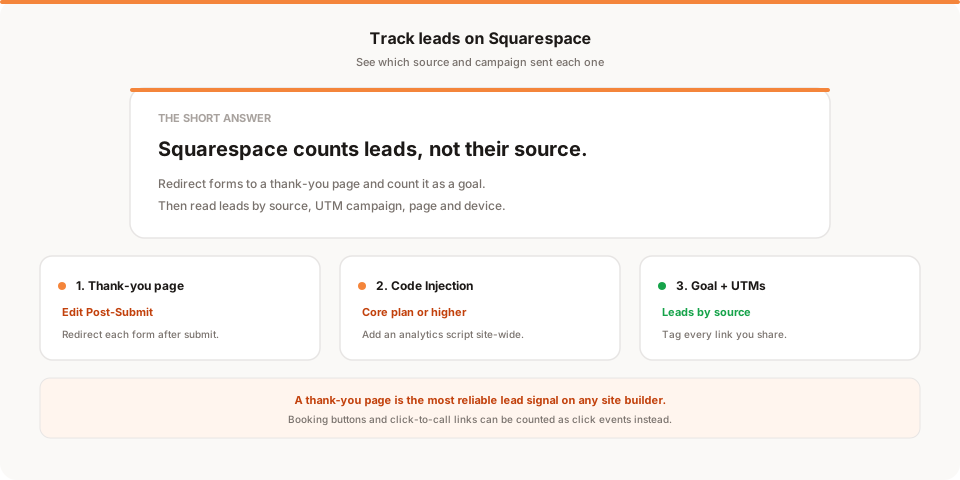
Short answer: Squarespace counts form submissions, but its built-in analytics don't tell you which source or campaign sent each lead. To get that, redirect your form to a thank-you page, add an analytics tool through Code Injection (Core plan or higher), make the thank-you page a goal, and tag your campaign links with UTMs. Then you can read leads by source, campaign, page and device.
Most Squarespace sites exist to get someone to fill in a form: a quote request, a contact form, a newsletter signup. Traffic numbers are nice. Leads are the point. And the question that matters is: which of the things I'm doing is actually sending them?
This guide is the lead-tracking setup, step by step. If you want the tour of Squarespace's built-in panels first, I covered that in how to check website traffic on Squarespace, so I won't repeat it here.
A quick disclosure: I'm Sanjeeva, and I build Muro. I use it as the worked example below, so weigh that. Every step works the same way in Plausible, Fathom or GA4, just with different button names.
Why Squarespace can't tell you which source sent a lead
Squarespace does count form submissions. The Form and button conversions panel (Core, Plus, Advanced, or a legacy Business or Commerce plan) shows each form's unique views, submissions and conversion rate. You can filter by date and sort by page.
What it doesn't do, at least according to Squarespace's help docs, is break those submissions down by traffic source, referrer or campaign. So you can learn that your contact form converted at 3% last month. You can't learn that Instagram sent 40% of the visitors but only 10% of the leads.
Squarespace's Traffic sources panel does connect sources to outcomes, but the outcomes are store orders and revenue: on Core and higher you can rank sources by revenue, orders, conversion rate and so on. That's great for a shop and doesn't help a consultant or studio whose "sale" is a form.
The form itself won't help either. Submissions go to your email by default, and to the Contacts panel when the form has a required email field. Neither records where the person came from.
So the fix is to connect the submission to the visit, which is exactly what a web analytics tool with goals does.
Step 1: Send form submissions to a thank-you page
A thank-you page gives each submission a page load you can count. It's the most reliable conversion signal on any site builder, because it doesn't depend on catching a button press.
First, create the page. Make a simple page called something like Thank you, with the URL slug /thank-you. Keep it out of your main navigation so only people who submitted ever see it. Add something useful on it: what happens next, how soon you'll reply, a link back to your work.
Then point the form at it. Per Squarespace's form block guide:
- Open the page with your form and click Edit.
- Click the form block, then click the pencil icon.
- In the Content tab, click Edit Post-Submit.
- Choose Redirect, click Attach Link, and pick your thank-you page.
- Click Save, then save the page.
Squarespace notes two things worth knowing. If you set a redirect, the post-submit message won't show. And post-submit redirects don't work while you're logged into your site, so test in a private window, or you'll think it's broken.
If you have several forms (contact, quote, newsletter), give each its own thank-you page, like /thank-you-quote and /thank-you-contact. That way you can count them separately.
Step 2: Add an analytics tool through Code Injection
You need a tool that records where each visitor came from and can count the thank-you page as a conversion. That means a third-party script, and that means Code Injection.
Squarespace renamed its plans. Its help center now says Code Injection is available on Core, Plus and Advanced, plus some legacy plans (Business, Commerce Basic and Commerce Advanced). The Basic plan doesn't include it. If you're on Basic, you'll need to upgrade before any of the steps below will work.
To add the script:
- Open the Code Injection panel (under your site's settings; Squarespace's help article links straight to it).
- Paste your tool's script tag into the Header field. Squarespace injects Header code into the
<head>of every page. The Footer field, which injects before the closing</body>tag, also works for most analytics scripts. - Save.
For Muro, the script is under 2 KB, sets no cookies and stores no IP addresses, so it generally doesn't need a consent banner in the EU. Open your site in a private window and Muro's setup screen confirms when the first visit arrives.
Step 3: Make the thank-you page a goal
A goal tells your analytics tool "a visit to this page is a lead." In Muro there are three ways to create one:
- Add it by hand. Create a goal of type exact page with the path
/thank-you. - Mark as goal. Once the page has had a visit, find it in the Pages list and click Mark as goal.
- Pick a suggestion. If a project has no goals yet, Muro suggests up to five candidate pages from its last 30 days of traffic, pages like thank-you, confirm or success. Nothing is created until you click one.
You can have up to 10 active goals per project, so one per form is fine.
Goals in Muro are retroactive. If the thank-you page has been getting visits since you installed the script, the new goal counts all of them straight away. It can't count anything from before Muro was installed, so the sooner the script goes in, the more history you'll have when you need it.
In Plausible this is a pageview goal, and in GA4 you'd create an event for views of that page and mark it as a key event. Same idea, different screens.
Step 4: Tag your campaigns with UTM parameters
Visitors from Google and most websites arrive with a referrer, so your tool will group them by source on its own. Plenty of traffic doesn't: email newsletters, many social apps, QR codes and ads often show up as "direct." That's how a successful newsletter ends up looking like nothing happened.
UTM parameters fix this. You add them to the links you share:
https://yoursite.com/services?utm_source=newsletter&utm_medium=email&utm_campaign=november-offer
A few habits that keep the data clean:
- Tag every link you control: newsletters, ads, Instagram bio, Linktree, QR codes on print.
- Keep names consistent. Lowercase, hyphens, one spelling.
instagramandInstagramwill show as two sources. - Use campaign for the "what." Source is where it went (newsletter), campaign is why (november-offer).
Squarespace has its own URL builder for trackable links on Core and higher. Muro Links includes a UTM builder with saved templates, so your team uses the same names every time. If your links tend to get messy, I wrote about tracking links without UTM mess.
Step 5: Read leads by source, campaign, page and device
Now the useful part. In Muro, open the goal and break conversions down by:
- Source: which sites and channels sent people who became leads.
- UTM campaign: conversions per campaign, so you can compare this month's newsletter with last month's.
- Page: which pages those leads came through.
- Country and device: useful when a mobile layout quietly loses leads.
Look at conversion rate next to raw counts. A source sending 2,000 visitors and 4 leads is worth less than one sending 150 visitors and 9 leads. I went deeper on reading this in which traffic source converts best.
One thing to know about attribution: Muro uses first-touch attribution, and it counts visitors with an anonymous ID that resets every 24 hours, so it can't follow one person across several days. Someone who finds you on Instagram and comes back through Google next week is two visitors to Muro. For most small sites, leads by source is still a good guide. Just don't treat it as an exact ledger.
Also note where this lives: leads and conversions are in Muro's dashboard. The morning email summarizes visitors, pageviews, bounce rate, average session, top sources and top pages. It doesn't list your leads.
Leads that aren't forms: booking buttons and click-to-call
Some Squarespace sites get leads through a button rather than a form: "Book a call" linking to a scheduler, a phone number, an email address. There's no thank-you page on your site to count, so count the click instead.
Muro counts clicks on any element with a data-muro-event attribute. Squarespace's help docs don't mention adding custom attributes to the standard Button block, so the dependable way is a Code Block with your own link:
<a href="https://your-booking-link" data-muro-event="book-call">Book a call</a>
A click on that link sends an event named book-call. Muro's dashboard confirms when the first one arrives, and you can mark it as a goal to see it by source and campaign like any form lead. Click goals only count from when you added the attribute, not before.
This measures intent, not completed bookings. Some people click and don't book. If you use Acuity (Squarespace Scheduling), it has a custom conversion tracking field that runs code on the booking confirmation, but Acuity loads that code in a frame on its own side, and I haven't confirmed it can tie a booking back to the original source. Treat the click as your lead signal unless you've tested otherwise.
Where Squarespace's own tools still help
You don't have to replace anything. A few built-in pieces work well alongside this setup:
- Contacts panel and email notifications keep the actual lead details (name, email, message). Your analytics tool never sees those, and shouldn't.
- Google Drive, Mailchimp or Zapier storage, set under Additional Storage in the form's Content tab, sends submissions to a sheet or your email list. Squarespace says Mailchimp and Zapier need Core, Plus, Advanced or some legacy plans.
- Form and button conversions is a quick check that each form is converting at all.
The analytics tool answers one question the others can't: which sources and campaigns sent the people who became leads.
Muro vs other tools for Squarespace lead tracking
Prices are approximate. Check each tool's site before you buy (November 2026).
| Squarespace built-in | GA4 | Plausible | Muro | |
|---|---|---|---|---|
| Price | Included (Core+ for conversions) | Free | From about $9/mo | From $12/mo (100k pageviews) |
| Form leads by source | Not described in its docs | Yes, with setup | Yes, with a pageview goal | Yes, with a page goal |
| Leads by UTM campaign | Not described in its docs | Yes | Yes | Yes |
| Cookies | Yes, for analytics | Yes | No | No |
| Daily email summary | No | No | Periodic email reports | Every morning at 8 AM |
GA4 is free and powerful, but it's cookie-based and fiddly to set up for this. Plausible is a clean, well-liked dashboard. Muro is the pick if your team would rather get a short morning email than open a dashboard, with goals and lead sources there when you want them. The product details are on our Squarespace page.
The bottom line
Squarespace counts your leads but doesn't tell you where they came from. Five steps fix that: a thank-you page, a script in Code Injection, a goal, UTM tags, and a look at leads by source each week or month.
You need Core or higher (or a legacy Business or Commerce plan) for Code Injection. The rest takes about half an hour.
If you'd like to try it with Muro, start a free 30-day trial. No credit card, no cookies, and your past thank-you page visits count as soon as you add the goal. If another tool fits you better, the same five steps work there too.